
The Electronic Credit Ledger enables the taxpayer to view the credit balance as on date and Provisional Credit Balance and Blocked Credit Balance details.
To view the Electronic Credit Ledger, perform following steps:
1. Access the https://www.gst.gov.in/ URL. The GST Home page is displayed. Login to the GST Portal with valid credentials. Click the Services > Ledgers > Electronic Credit Ledger option.
2. The Electronic Credit Ledger page is displayed. The credit balance as on today’s date, Provisional Credit Balance and Blocked Credit Balance is displayed.

2 (a) Electronic Credit Ledger:
2.a.1. Click the Electronic Credit Ledger link. This enables the taxpayer to view various credit ledger related details further.
Note: Negative amounts in Electronic Credit Ledger cannot be utilized for payment of liabilities.

2.a.2. Select the From and To date using the calendar to select the period for which you want to view the transactions of Electronic Credit Ledger. Click the GO button.

2.a.3. The Electronic Credit Ledger details are displayed.

2.a.4 Scroll to the right to view further details.
Note:

Note:

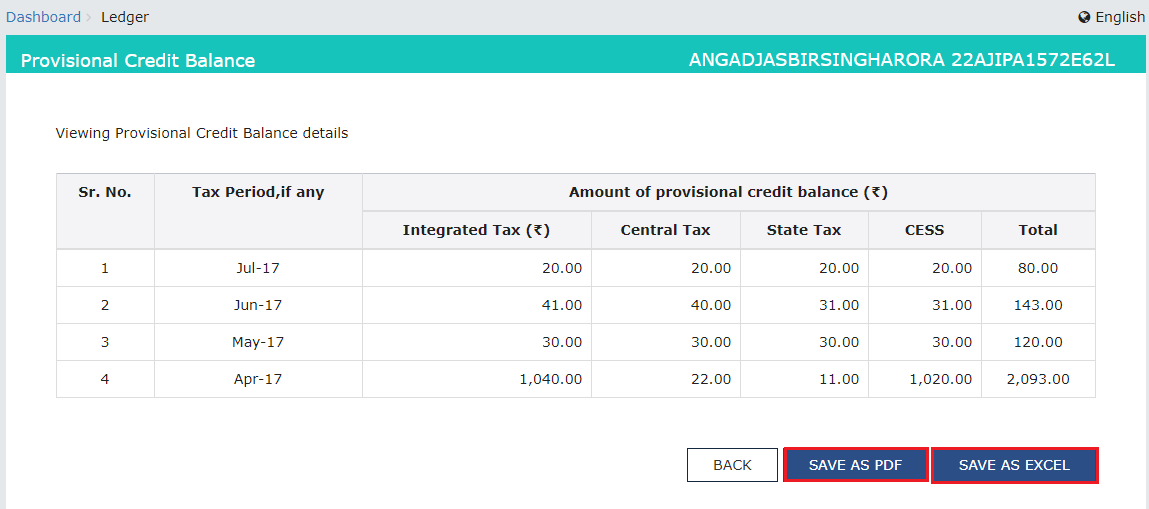
2 (b) Provisional Credit Balance:
2.b.1. Click the Provisional Credit Balance link.
2.b.2. The Provisional Credit Balance details are displayed.
Note: Click the SAVE AS PDF and SAVE AS EXCEL button to save the Provisional Credit Balance in the pdf and excel format.
2 (c) Blocked Credit Balance:
2.c.1. To view ITC amount available in your Electronic Credit Ledger, which has been blocked by Jurisdictional Tax Officer, click the Blocked Credit Balance link.

2.c.2. Select the From and To date using the calendar to select the period for which you want to view the blocked Credit Balance.

2.c.3. The blocked Credit Balance details are displayed.

Note:
The Electronic Credit Reversal and Re-claimed Statement enables the taxpayer to view the details of total credit reversed and total credit re-claimed for each return period.
Note: Electronic Credit Reversal and Re-claimed statement will be available only for those taxpayers to whom form GSTR-3B is applicable.
1. Access the https://www.gst.gov.in/ URL. The GST Home page is displayed. Login to the GST Portal with valid credentials. Click the Services > Ledgers > Electronic Credit Reversal and Re- claimed Statement option.

2. Alternatively, navigate to the Dashboard page > Quick Links > Electronic Credit Reversal and Re- claimed Statement option.

3. On the Electronic Credit Reversal and Re-claimed Statement page, the details of ITC Reversal Balance as on today’s date, Financial Year and Month will be displayed on the screen.

4. Click on the Help hyperlink to view the help manual.

5. Click the CLOSE button.

2 (a) Electronic Credit Reversal and Re-claimed Statement:
2.a.1. Click the Electronic Credit Reversal and Re-claimed Statement link. This enables you to view the statement of total amount of ITC reversed and total amount of ITC reclaimed in each return period.

2.a.2. Click the DOWNLOAD OPENING BALANCE (PDF) to download the PDF in your system.

Check the system-generated PDF to rule out any discrepancy.

2.a.3. Select the From and To date using the calendar to select the period for which you want to view the transactions of Electronic Credit Reversal and Re-claimed Statement. Click the GO button.

Note: You can view maximum 12 months data in one go. If you try to fetch data for more than 12 months following error message will be displayed.

2.a.4. The Electronic Credit Reversal and Re-claimed statement details for the selected period will be displayed on the screen.

Scroll to the right to view further details.

2.a.4. Click the SAVE AS EXCEL button to save the Electronic Credit Reversal and Re-claimed statement in the excel format on your device.

Check the system-generated excel file to rule out any discrepancy.

2(b) Report ITC Reversal Opening Balance:
2.b.1. Click the Report ITC Reversal Opening Balance link. This enables the taxpayer to report the opening balance.

Alternatively, navigate to Dashboard page > REPORT ITC REVERSAL OPENING BALANCE button to report the opening balance.

2.b.2. The page for Declaration of Opening Balance of Accumulated ITC Reversal pending for re-claim will be displayed on the screen. Enter the details under Integrated Tax, Central Tax, State/UT Tax and Cess columns. Click the Verification check-box and select the Authorised Signatory from the drop-down list.
2.b.3. Click the SUBMIT WITH DSC or SUBMIT WITH EVC button.

Note: You can click on the Advisory hyperlink to view the advisory and click the OK button.

2.b.4. A Successful message will be displayed on the screen. Click the OK button.

2.b.5. The Opening Balance will be displayed on the screen.

Note 1: a) You can amend opening balance by clicking the AMEND button.

b) Enter the updated details under Integrated Tax, Central Tax, State/UT Tax and Cess columns, then select the Verification check-box. Select the Authorised Signatory from the drop-down list and click the SUBMIT WITH DSC or SUBMIT WITH EVC button.

C) A Warning message will be displayed on the screen. Click the PROCEED button.

Note: If the updated details are same as the previous details under all the columns, then following warning message will be displayed on the screen. Click the CONFIRM button.

d) A successful message will be displayed, Click on OK button.

e) The updated details will be displayed on the screen.

Note 2: Once the opening balance has been amended first time, two entries will be recorded in the statement (Original and Amended) with the date on which the balance has been amended. The option to amend the opening balance will be available till 31st December 2023 and the date will be configurable.

Note 3: Click the AMEND button again to amend the opening balance second time, and one more time to amend it third time. The entries will be recorded in the statement and following screen will be displayed after the amendments:
Note 4: The AMEND button will be disabled after the third time. Click the BACK button to go to the previous screen.

Note 5: Reversal will be made with the complete amount of all the heads and new entry will be made with revised value for all the heads whether changes made in all heads or single head.