
For registering yourself as a Tax Collector on the GST Portal, perform the following steps:
1. Access the https://www.gst.gov.in/ URL. The GST Home page is displayed. Click the Services > Registration > New Registration option.
The Application form is divided into two parts as Part A and Part B.
Part A:
2. The New Registration page is displayed. Select the New Registration option.
3. In the I am a drop down list, select the Tax Collector as the type of taxpayer to be registered.
4. In the State/UT drop down list, select the State/UT for which registration is required.
Note: Tax Collector who does not have a physical presence in a State/UT, needs to mention the name of the State/UT in Part A of the application, in which they want to get registration. Tax Collector can mention the name of the State/ UT in Part B of the application, in which the principal place of business is located, which may be different from the State/UT mentioned in Part A. Thus, Tax Collector can edit the name of the State/ UT field in Part B, if required.
5. In the Legal Name of the Tax Collector (As mentioned in PAN) field, enter the legal name of your Tax Collector as mentioned in the PAN database.
6. In the Permanent Account Number (PAN) field, enter PAN number.
Note:
In case you don’t have PAN, you can apply for PAN. To do so, click the here link.
Legal Name of the Tax Collector and PAN will be validated against the CBDT database.
7. In the Email Address field, enter the email address of the Primary Authorized Signatory.
8. In the Mobile Number field, enter the valid Indian mobile number of the Primary Authorized Signatory.
Note: Different One Time Password (OTP) will be sent on your email address and mobile number you just mentioned for authentication.
9. In the Type the characters you see in the image below field, enter the captcha text.
10. Click the PROCEED button.

11. On clicking proceed, GST Portal displays all the GSTINs / Provisional ID’s / UINs / GSTP IDs mapped to the same PAN across India. Click the PROCEED button.

Note:
You can click the DOWNLOAD button to download the existing registration details in PDF format.
Following Color code has been used to donate different status of the ARN:
Green Color: Green color reflects the Approved Registration Application.
Red Color: Red color reflects the Rejected Registration Application.
Orange Color: Orange color reflects the Pending for Processing/Pending for order Registration Application.
12. After successful validation, you will be directed to the OTP Verification page. In the Mobile OTP field, enter the OTP you received on your mobile number entered in PART-A of the form. OTP is valid only for 10 minutes.
13. In the Email OTP field, enter the OTP you received on your email address entered in PART-A of the form. OTP is valid only for 10 minutes.
Note: OTP sent to mobile number and email address are separate. In case OTP is invalid, try again by clicking the Click here to resend the OTP link. You will receive the OTP on your registered mobile number or email ID again. Enter both the newly received OTPs again.
14. Click the PROCEED button.

15. The system generated 15-digit Temporary Reference Number (TRN) is displayed. Click the PROCEED button.
Note: You will receive the TRN acknowledgment information on your e-mail address as well as your mobile number. Note that below the TRN the expiry date of the TRN will also be mentioned.
Alternatively, you can also click Services > Registration > New Registration option and select the Temporary Reference Number (TRN) radio button to login using the TRN.

PART B:
16. In the Temporary Reference Number (TRN) field, enter the TRN generated and in the Email Address field, enter your email address.
17. In the Type the characters you see in the image below field, enter the CAPTCHA text.
18. Click the PROCEED button. The Verify OTP page is displayed. You will receive same Mobile OTP and Email OTP. These OTPs are different from the OTPs you received in previous step.

19. In the Mobile / Email OTP field, enter the OTP you received on your mobile number and email address. OTP is valid only for 10 minutes.
Note: OTP sent to mobile number and email address are same. In case OTP is invalid, try again by clicking the Click here to resend the OTP link. You will receive the OTP on your registered mobile number or email ID again. Enter the newly received OTP again.
20. Click the Proceed button.

21. The My Saved Application page is displayed. Under the Action column, click the Edit icon (icon in blue square with white pen).
Note:
Notice the expiry date shown below in the screenshot. If the applicant doesn’t submit the application within 15 days, TRN and the entire information filled against that TRN will be purged after 15 days.
The status of the registration application is ‘Draft’ unless the application is submitted. Once the application is submitted, the status is changed to ‘Pending for Validation’.

Click the information icon to see the meaning of all the statuses.


The Registration Application form with various tabs is displayed that must be filled sequentially. On the top of the page, there are five tabs as Business Details, Tax Collecting Officer, Authorized Signatory, Office Address of Tax Collector and Verification. Click each tab to enter the details.
Business Details tab:
The Business Details tab is selected by default. This tab displays the information to be filled for the business details required for registration.
a) In the Trade Name field, enter the trade name of your business.
Note: Trade name of the business is different from the legal name of the business.
b) In the Constitution of Business drop-down list, select the type of constitution of your business. This will be validated with the CBDT Database for a match with the PAN entered in Part A of the form.
c) In the Sector/ Circle / Ward/ Charge/ Unit drop-down list, select the appropriate choice.
d) In the Commissionerate Code, Division Code and Range Code drop-down list, select the appropriate choice.
e) Click the SAVE & CONTINUE button.

Tax Collecting Officer tab:
This tab page displays the details of Tax Collector responsible for collecting tax at source.
a) In the Personal Information section, enter the personal details of the Tax Collecting Officer like name, father’s name, date of birth, telephone number, email address and gender.
b) In the Identity Information section, enter the official information of the Tax Collecting Officer like designations and PAN.
c) In the Residential Address section, enter the address details of the Tax Collecting Officer. Based on the State selected, select the district and enter the corresponding pin code.
d) In the Document Upload section, click the Choose file button. Navigate and select the photograph of the Tax Collecting Officer.
Note 1: Ensure that your photograph is in JPEG format and the file size is less than 100 KB.
Note 2: While uploading a document, if the system identifies the document as blank, the upload will fail and the following error message will be displayed on the screen: "The document uploaded is blank. Kindly upload the document again." The user must re-upload the document and cannot proceed with the application until a valid document is uploaded.

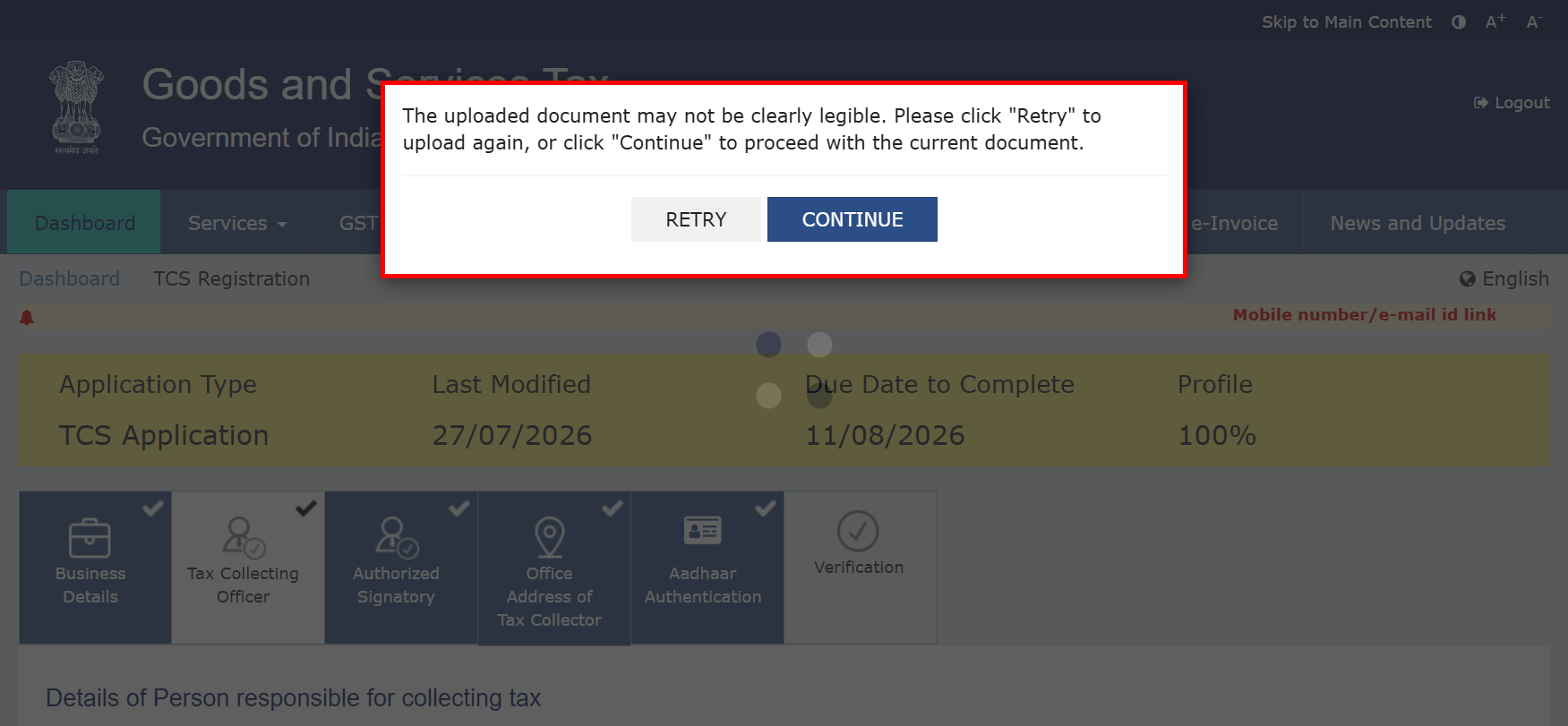
Note 3: If the uploaded document is unclear or difficult to read, the system displays the following warning message on the screen. The user can then choose to upload a legible document by clicking RETRY or continue the application with the current document by clicking CONTINUE.
e) In case Tax Collecting Officer is the Primary Authorized Signatory, select the checkbox for Also Authorized Signatory and details will be auto-populated in the Authorized Signatory tab.
f) Click the SAVE & CONTINUE button.

Authorized Signatory tab:
This tab page displays the details of the authorized signatory. You can enter details of up to 10 authorized signatories.
If you selected the Tax Collecting Officer as the Authorized Signatory, the system will skip this section and details of Tax Collecting Officer will be auto populated.
a) If you did not select ‘Also Authorized Signatory’ in previous Tax Collecting Officer tab, enter all the details of the authorized signatory and click SAVE AND CONTINUE at the bottom of the screen.

Note:
Office Address of Tax Collector Tab:
This tab page displays the details of the office address of Tax Collector.
a) In the Address section, enter the address details of the principal place of business. Based on the District selected enter the corresponding pin code.
Note:
By default, value of State is shown as the per the selection made in Part A of the form. However, you can edit this field, if required.
Tax Collector who does not have a physical presence in a State/UT, needs to mention the name of the State/UT in Part A of the application, in which they want to get registration. Tax Collector can mention the name of the State/ UT in Part B of the application, in which the principal place of business is located, which may be different from the State/UT mentioned in Part A.
b) In the Contact Information section, enter the official contact details like Email address, telephone number (with STD Code), mobile number field and fax number (with STD Code).
c) Select Yes in case you have obtained any other registrations under GST in the same State.
d) In the Nature of Possession of Premises drop-down list, select the nature of possession of premises.
e) In the Document Upload section, click the Choose file button. Navigate and select the Proof of address of Tax Collector.
Note 1: You can upload PDF or JPEG files with maximum file size for upload of as 1 MB.

Note 2: While uploading a document, if the system identifies the document as blank, the upload will fail and the following error message will be displayed on the screen: "The document uploaded is blank. Kindly upload the document again." The user must re-upload the document and cannot proceed with the application until a valid document is uploaded.

Note 3: If the uploaded document is unclear or difficult to read, the system displays the following warning message on the screen. The user can then choose to upload a legible document by clicking RETRY or continue the application with the current document by clicking CONTINUE.

Aadhar Authentication tab:
This tab page displays the details of the verification for Aadhaar authentication submitted in the form. You can opt Yes or No for Aadhaar authentication of Authorized Signatories.
Aadhaar authentication is based on constitution of business (COB). The following table explains and lists the Aadhaar authentication for different constitution of business:
|
S.No. |
Constitution of Business |
Status of the Stake holders |
Person required to undergo mandatory Aadhaar Authentication |
Aadhaar Authentication Required for |
|
1 |
Proprietorship Concern |
Proprietor |
Primary Authorized Signatory |
Primary Authorized Signatory (if other than proprietor) and Proprietor |
|
2 |
Partnership Firm |
Partner |
Primary Authorized Signatory |
Primary Authorized Signatory (if other than partner) and one of the partners |
|
3 |
HUF |
Karta |
Primary Authorized Signatory |
Primary Authorized Signatory (if other than Karta) and Karta |
|
4 |
Company (Public, Private, Unlimited) |
Director |
Primary Authorized Signatory |
Primary Authorized Signatory (if other than Director) and one of the Directors |
|
5 |
Company (Foreign Limited) |
Director (Not mandatory if Director is not citizen / resident of India) |
Primary Authorized Signatory |
Primary Authorized Signatory and one of the Directors who is citizen / resident of India. Aadhar authentication of Primary Authorised Signatory alone will suffice if he/she also happens to be a Director or all the Directors happen to be non-citizens / residents of India. |
|
6 |
Limited Liability Partnership |
Director |
Primary Authorized Signatory |
Primary Authorized Signatory ( if other than Director)and one of the Directors |
|
7 |
Society/Club/Trust/Association of Person |
Member |
Primary Authorized Signatory |
Primary Authorized Signatory ( if other than Member) and one of the members |
|
8 |
Other |
Members |
Person in Charge |
Primary Authorized Signatory ( if other than Member) and one of the members |
In case, you have selected Yes:
a) Select Yes, in case, you want to opt for Aadhaar authentication of Authorized Signatories.
Note:
Once you have opted “Yes” for Aadhaar authentication while registering on the GST Portal and registration application is submitted, an authentication link will be shared on mobile number & email (as given in registration application on GST Portal), of Primary Authorized Signatory which are selected upon submission of registration application.
If you have opted “Yes” for Aadhaar authentication, while registering on the GST Portal and your Aadhaar authentication has been successfully validated, your application will be deemed approved within 7 Working days. The registration application submitted by you will not be marked for mandatory site visit. If Tax Official raises SCN within 7 working days, then you will have 7 working days to reply to it. Tax Official can take further action on that reply within 7 working days. If Tax Official doesn't take any action in 7 working days, therefter, then application will get deemed approved after 7 working days.
In case, you have opted “No” for Aadhaar authentication, while registering on the GST Portal, Registration application will not be deemed approved within 7 Working days. Registration will be marked for mandatory site visit and approval thereafter, by the Tax Official. Registration application will get deemed approved after 30 calendar days, if Tax Official doesn't take any action. If Tax Official raises SCN within 30 calendar days, then you will have 7 working days to reply to it. Tax Official can take further action on that reply within 7 working days. If Tax Official doesn't take any action within 7 working days, then application will get deemed approved.
b) From the list displayed on the Aadhaar Authentication tab, select at least one person for Aadhaar authentication. Click the SAVE & CONTINUE button.
Note:
You will receive authentication link on mobile number and e-mails ID of the Authorized Signatories as selected here.
Please note you will receive common OTP on mobile number and E-mail ID linked with your Aadhaar for its authentication.
ARN would be generated once Aadhaar Authentication exercise is completed for all applicable persons whose name are selected in this table.

In case, you have selected No:
a) Select No, in case, you do not want to opt for Aadhaar authentication of Authorized Signatories. You will receive a warning message that you have opted No for Aadhaar authentication. Click OK.
Note: In case, you have opted “No” for Aadhaar authentication, while registering on the GST Portal, Registration application will not be deemed approved within 7 Working days. Registration will be marked for mandatory site visit and approval thereafter, by the Tax Official.

b) You can upload E-KYC documents for Primary Authorized Signatory and at least one Promoter/Partner.
Note 1: File with PDF or JPEG format is only allowed. The maximum size for upload is 2 MB.
Note 2: Ensure that the E-KYC documents selected for upload have your name as spelled in PAN/CBDT database.


Note 3:
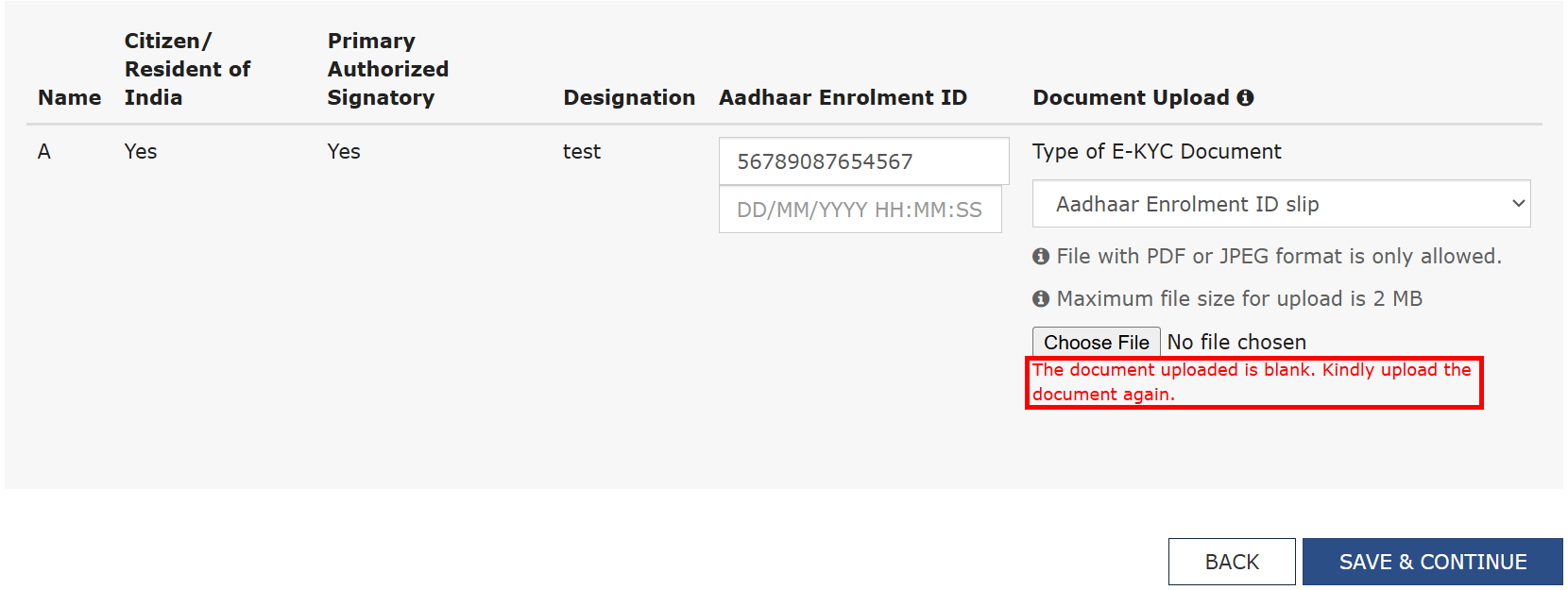

Note 4: The Aadhaar Enrollment ID should be different for different Promoter/Partners and Authorized Signatories. In case you enter the same Enrollment ID, an error message will be displayed.

C) Click the SAVE & CONTINUE button.
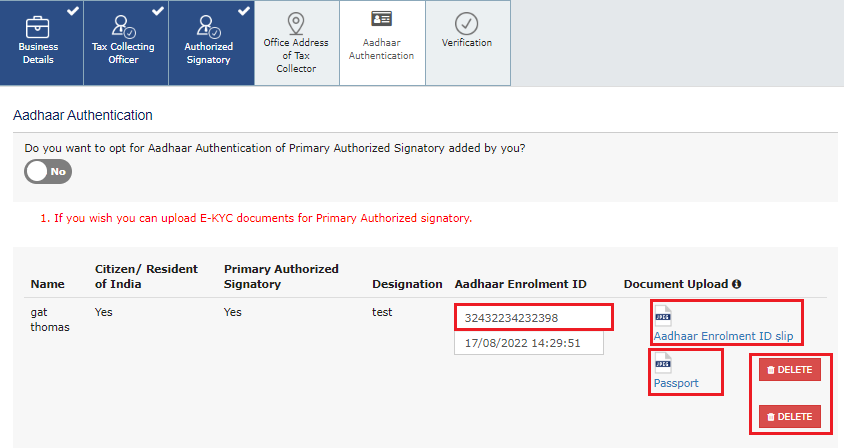
Note: You can click the DELETE button to delete the uploaded documents, if required.
Verification tab:
This tab page displays the details of the verification for authentication of the
details submitted in the form.
a) Select the Verification checkbox.
b) In the Name of Authorized Signatory drop-down list, select the name of authorized signatory.
c) In the Place field, enter the place where the form is filed.
d) After filling the registration application, you need to digitally sign the application.
Note: After submission, you cannot make any changes to your application.

In Case of DSC:
e) Click the SUBMIT WITH DSC button.
f) Click the PROCEED button.
g) Select the certificate and click the SIGN button.
Note: To view the details of your DSC, click the View Certificate button.
h) Select the certificate and click the SIGN button.
In Case of EVC:
e) Click the SUBMIT WITH EVC button.
f) Enter the OTP sent to email and mobile number of the Authorized Signatory registered at the GST Portal and click the VALIDATE OTP button.
The success message is displayed. You will receive the acknowledgement in next 15 minutes on your registered e-mail address and mobile phone number. Application Reference Number (ARN) receipt is sent on your e-mail address and mobile phone number.
